
Last updated in August 2026. Checked on WordPress 7 and PHP 8, theme version 1.2.9.
View live demos
Download the theme
Enjoyed this? Then subscribe to the newsletter or follow us on YouTube. It costs nothing and helps more than anything. We have been at this since 2009, and we will keep going.Enjoyed this? Then follow us on YouTube. It costs nothing and helps more than anything. We have been at this since 2009, and we will keep going.
Yoko is a three column blog theme that folds to two columns and then to one as the screen narrows, with post formats for short entries. It is a classic theme, set up on its own options page.
The Yoko Theme Overview

Yoko is a modern and flexible WordPress Free-Theme. With the responsive Layout the theme adjusts different screen sizes. Therefore the Yoko design is optimized for big desktop screens, tablet pcs like the iPad or small smartphone screens. To make your blog even more individual you can use the new post formats (like gallery, aside or quote), choose your own logo and header image, customize the background and link color. Just have a look at the Yoko live demo or download Yoko right away to test it on your own blog.


iPad portrait mode and smartphones, one-column layout.
The theme features
- responsive layout with CSS3 Media Queries: The blog layout adjusts to different screen sizes and is therefore optimized for mobile devices such as tablet pcs and smartphones.
- HTM5 (fallback for IE < 9)
- custom link color, header image, background and logo image
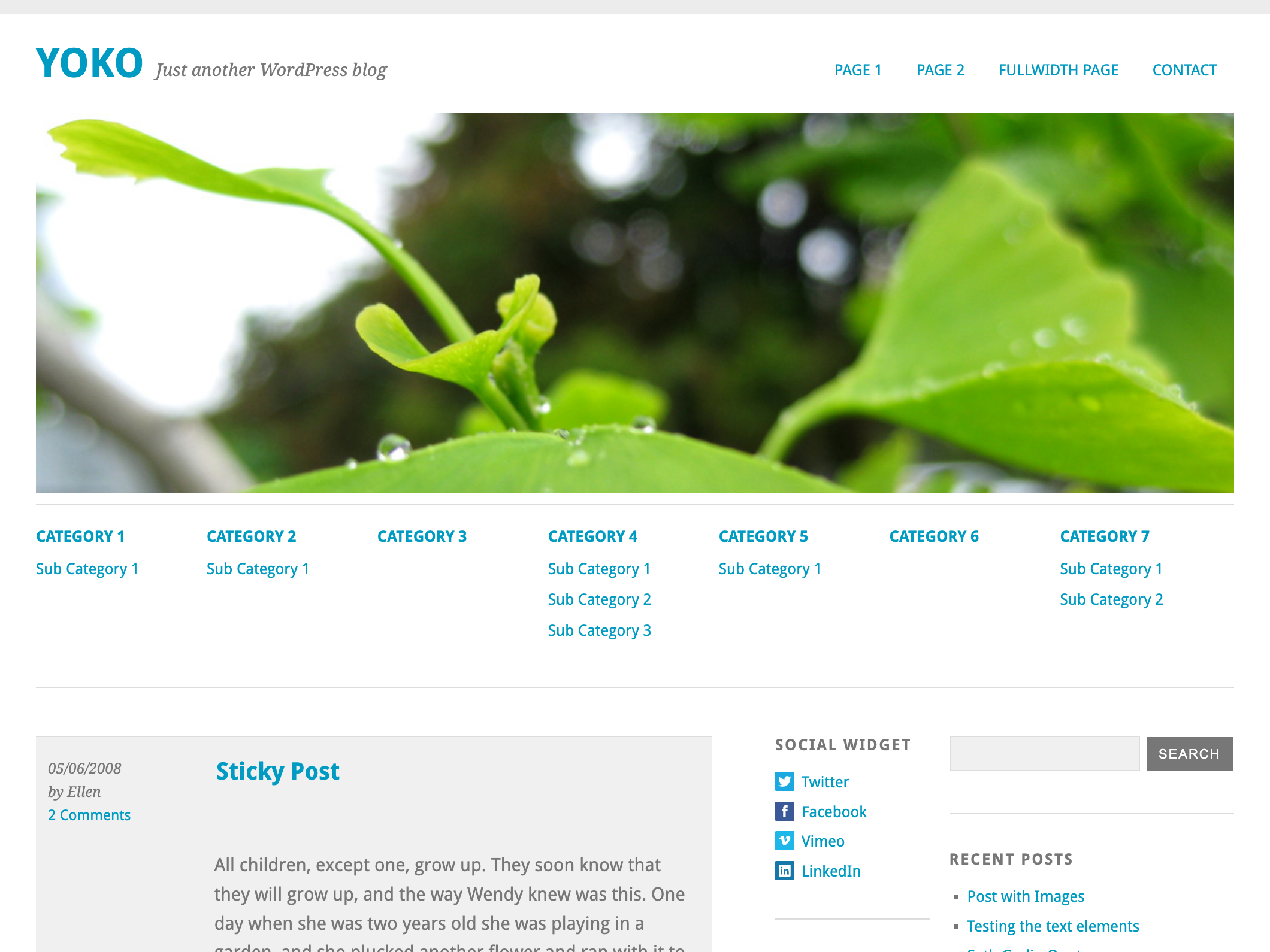
- optional additional navigation menu (Sub Menu) below the header image
- theme options page
- Yoko social links widget with mini icons (for RSS, twitter, facebook, flickr, vimeo, linkedin and delicious)
- post formats for standard, aside, gallery, link, video, image and quote (you need to have WordPress 3.1 installed)
- threaded comments
- post thumbnails
- custom CSS Styles for the Contact 7 form WordPress plugin
- Using of Google web fonts Droid Sans and Droid Serif
- translation-ready (currently the English, German and French translations are available)
The theme options
Just download the Yoko theme and unzip the themes folder. Upload the Yoko theme folder with an ftp program (like filezilla) into your WordPress installation folder wp-content/themes/….
To use the Yoko theme after uploading it go to your WordPress admin panel and choose Appearance / Themes. Here you can see the Yoko theme in the list of available themes and you can choose to activate it.
1. Custom link color and logo image
To use a custom link color or logo image go to Appearance / theme options page.

Here you can type in your own link color using the hex term like #009BC2 (don’t forget the symbol #) or a color term like red, blue or green.
Your logo image can have an individual pixel size. Just upload your logo image to the WordPress media library, copy the image URL and paste the URL into the theme options page.
2. Custom Header Image
To use an individual header image go to Appearance / Header.

Here you can upload your own header image in the size 1102×350 Pixel, pick one of the other header images that come with the Yoko theme or choose not to use an header image at all.
3. Custom Background
In the admin panel choose Appearance / Background to pick your own background color or upload a background image.

The image doesn’t have to be very big, you can prepare a small image (like 100x100px) and choose to repeat the image horizontally and vertically. This way your website loads faster into the browser because you can decrease the background image file size.
4. Customize the main navigation
If you want to customize the apperance of the main menu (at the top right side of the theme layout) you can use the WordPress custom menu option.

Just set up your individual navigation menu (Appereance / Menus) and mark it as the Primary Navigation in the Theme Locations option field (at the top left side of the menu admin panel).
5. Additional navigation menu (Sub Menu)
One more Yoko theme feature is the optional additional navigation menu right below the header image.

To use this additional menu option set up an custom menu with the name „Sub Menu“ under Apperance / Menues. You can use up to seven main menu terms and multiple sub menu terms. Just drag’n’drop the sub menu terms a little bit to the right to mark them as sub level. After you save your „Sub Menu“ navigation menu you will see it in your blog layout.
6. Post Formats (WordPress feature since version 3.1)
Yoko also supports the new post formats feature. Right now you can choose your posts to be standard posts, aside (a short note), gallery, link, video, image or quote posts.

The different post formats will then have different styles in your blog design.

7. Post Thumbnails
In the Yoko theme you can show to include post thumbnail.

The Thumbnail image size is 140×140 Pixel (bigger images will automatically be resized). To add a thumbnail to a post just upload it using the option field „Featured image“ in the „Edit Post“ admin window.
8. The Yoko Social Links widget
Yoko has a custom widget with mini icons to link to your social profile sites like Twitter, Facebook, Flickr, Vimeo, LinkedIn, Delicious or to your RSS Feed.

To use the widgets choose Appearance / Widgets in the admin panel and drag’n’drop the Yoko Social Links Widget into one of the two sidebars. In the Widgets Options you can add a widget title and your link texts and URLs.
9. Author description
To show an author description text with gravatar image at the end of every post just fill out the „Biographical Info“ in the Users profile.

After updating the info the author info field will show up automatically at the end of every single post page.
10. Threaded Comments
Yoko also supports the WordPress threaded comments feature. There will be an reply button after every comment to reply directly to an individual comment. If the button downn’t show up you might have to enable the threaded comments option under Settings / Discussion / Other comments options.
11. Theme translations
Yoko is ready for theme translation. Right now there is the default English and a German translation available. You can add your own translation or customize an existing translation very easily by using the WordPress plugin „Codestyling Localization“. At the plugins homepage you can find a detailed plugin description.
12. Customizing Yoko by creating a child theme
In case you want to customize the Yoko theme a little further and you therefore change the code in the themes Styleeheet or any of the theme template files please consider creating a child theme for your changes. Creating a child theme is very easy and it saves all your individual changes from being overwritten by a future update of the Yoko theme. You can find more information on creating a child theme in the WordPress Codex.
We hope you like the Yoko WordPress theme. To ask any question about the theme or report a problem just write us a comment or a message using the contact form. We are looking forward to your feedback, questions and suggestions!

59 comments
Hello and congratulations for this great theme :-)
I’ve translated it in french today, feel free to download this translation here : http://www.wptrads.fr/theme/yoko/
Best Regards,
Wolforg.
Replying to Wolforg
Hi Wolforg,
thanks a lot for your effort to make the Yoko theme available for french WordPress users. Thats great :-) Would it be okay with you if I include your translation files in the next theme update?
Best wishes,
Ellen
Replying to Ellen
Ellen, you can include this thanslation in the next theme update. I’ve done it for this reason :-)
Of course, you can include the Ari’s translation too :-D
Keep the pressure,
Wolforg.
Replying to Wolforg
Hi Wolforg,
thanks for your feedback and for the theme translations of course :-) I will put a credit link to your site for the translations, too :-)
Thanks a lot,
Ellen
This is the coolest free responsive wordpress theme that I have found! Thanks a lot!
Replying to RozaniGhani
Hi RozaniGhani,
thanks a lot for your feedback. I am happy that you like our theme :-)
Best Regards,
Ellen
Hallo Ellen – this is a really great theme – thanks so much! I have one question (I hope English is OK). How would you include a search/suche field in the header, in the right corner, as you have on this page? Do you have any code you could share, as I’m no expert unfortunately. Any tips greatly appreciated. Danke!
Replying to Joe
Hallo Joe,
thanks for your great feedback :-) We didn’t put the search form in the themes header navigation so the users can use both the default pages navigation or a custom menu navigation.
Here on our blog we actually hardcoded the navigation to include the search form into the main menu. To do so too you could put the following code in the header.php file right below the opening div of the header:
<nav id="mainnav" class="clearfix">
<ul class="main-header">
<li><a href="/page-1/">Page 1</a></li>
<li><a href="/page-2/">Page 2</a></li>
<li><a href="/page-3/">Page 3</a></li>
<li class="search"><?php get_search_form(); ?></li>
</ul>
</nav>
<!–end main nav–>
[/php]
Then you can use custom CSS styling for #mainnav ul.main-header li.search if you wanted to.
I hope this explanation will help you with customizing your theme :-)
Viele Grüße,
Ellen
Replying to Ellen
Hallo, geht das auch mit nem individuellen Menü, statt der Seiten?
Replying to Ellen
Vielen Dank Ellen! The reply is very much appreciated. I will have a go at using the code – and will let you know about the site once it’s done. Thanks again!
I was planning on designing a theme, because I couldn’t find what I wanted. Then I ran into this one. html5, fast, scalable width, post formats, clean. Wow. You read my mind and did a far better job than it imagined. Thanks a ton. I’m a convert.
Replying to Vidyut
Hello Vidyut,
thanks so much for your feedback on the Yoko theme, we are glad that you like it :-) If you’re planing on doing some customization like in the style.css file please consider to create a child theme so on future theme updates via the admin panel your changes will still be available :-) You can find more information about Child Themes in the WordPress Codex.
Best Regards,
Ellen
Hello!
Great theme, looks awesome! Just wondering if there’s any way to make the main header image rotate with a couple of different images?
Thanks!
Cass
Replying to Cass
Hi Cass,
thanks for the feedback to the Yoko theme. I’m glad you like it! Yes, in the next theme update I will include such an option :-)
Best regards,
Ellen
Hi! I just wanna say thanks for a great theme. I started use it this morning and have build a small site during the day.
Best regards from Sweden!
Hi,
I love this theme and am using it on my new site – http://www.proflightsimulatorinfo.net/
However when I log out of the WordPress dashboard the theme does not seem to load properly. I have tried re-installing but still the same problem This happens in IE, Firefox and Chrome!?
Anyone have any idea why this is happening and how I can resolve it?
Thanks in advance…
Joe
Replying to Joe
Hi Joe,
thanks a lot for your feedback :-) I also just replied to you at the WordPress.org Forums. I think your problem has something to do with your cache plugin installed.
To try this out could you deactivate the cache plugin and see if the theme styles show up. If so it might help just to activate or delete and install the cache plugin again and then clear the cache. I hope this tip can help you to show the theme proberly :-)
Best regards,
Ellen
I also love this theme, however at some narrow widths the tag line wraps so that part of it appears besides and part of it underneath the main heading.
Replying to Ed
Hi Ed,
thanks for your feedback :-) If possible could you maybe let me know in what browser you see this layout problem because? Or maybe you could also send me a screenshot at kontakt(at)elmastudio(dot)de? That would be great because I just can not find the problem when I test the site :-)
Thanks a lot,
Ellen
Replying to Ellen
This is on a Mac using Firefox 4 or Safari, open the demo page and observe the sub-heading “Just another …”. Gradually narrow the page, the sub-head becomes 2 lines, continue narrowing, when it becomes 3 lines the last word wraps under the site main heading.
In my actual test case (on a private machine) the text strings are longer so it happens at an earlier stage but this demonstrates the issue..
Hi I’m trying the YOKO theme and I’m wondering if I can chnage the header images height, I think it is a bit to high.
How can I change that?
Best regards
Replying to Jens Peter Sørensen
Hi Jens,
to change the header image height first you have to set your own height value (in pixel) in the functions.php theme file in line 69 (“define HEADER_IMAGE_HEIGHT”) and save the file.
Then you just upload your own image via the wordpress admin panel and your own image with the correct height should show up :-)
Best regards,
Ellen
Ellen,
You are a star, it worked thanks!
I am leaving the W3 cahce plugin unistalled and will try Super Cache instead.
Many thanks again for a great theme…
Joe
Hi Ellen,
I just installed WordPress I would really like to use the Yoko theme for my business site but I would only want to display the header image on the home page and hide it on the other pages.
Secondly I’d like to only use the blog functionality (recent posts, comments, archive, etc.) on the ‘blog” page and not on the others.
Finally, in the pages ‘dashboard’ where do I find the home page? I only see the other pages listed.
Is all this possible/supported? If not, can I achieve this with child themes? Or am I better off choosing another theme before I spend lots of time on trying?
thanks in advance!
Harald
Replying to Harald
Hi Harald,
thanks for choosing the yoko theme for your website :-) Of course you can do all the changes you want in the theme, but you would have to make some changes and add additional template files for example in your own custom child theme.
Right now Yoko is only a blog theme and doesn’t habe a home.php template file. To show the header image only on the homepage, you would have to modify the template-file header.php and move the header-image part (line 55-65) into a custom home.php file or the index.php file (if you still want to show the blog on the home page).
If you don’t want to show the blog sidebar on pages you can choose the fullwidth page option in the admin area while writing a page.
I hope my tips can help you to deside if you want to modify the Yoko theme :-)
Best regards,
Ellen
Replying to Ellen
Excellent Ellen. That helps a lot.
So if I understand it correctly you would suggest the following:
– Create a child theme (to avoid an update overwrite) and move header image part of header.php into a custom home.php
– Use full-width page template for all pages where I don’t want the blog bar
– Use the default template of the cild theme for the BLOG page
2 more questions:
1. In which field do I need set the custom home.php to be the home page of the site (the ‘WordPress address (URL)’ field in general settings?)
2. I just created the child folder in the themes folder and included the styles.css with parent reference to yoko theme. But the themes page in admin says: Child installed but incomplete “Parent theme missing. Please install the yoko\ parent” even though the yoko theme is there, it is even activated as current theme. What could be causing this?
Your help is much appreciated!
Harald
Replying to Harald
Hi Harald,
to use the Child theme you have to activate the child theme in your admin area. The parent yoko theme just has to be in the themes folder.
If you add a home.php file to your theme then you can create a new page and choose the template “Home” while creating the page. Now you can set this new page as home page in the admin panel under settings / Writing.
I hope my answers can help you to set up your Yoko child theme :-)
Best regards,
Ellen
Replying to Ellen
Thanks Ellen. I placed the custom home template in the child theme folder but when I create a new page in admin from the ‘home template’ and call it “Home”, then the website shows the template itself instead of the page called ‘Home’ created from it.
I looked in Settings-Writing but don’t see a field to set the home page. In Settings-reading I set it to ‘Home’ but that opens the template, not the page.
thx – Harald
Does anybody know how to customize the index page so that the date, admin and comment stamps are deleted and the post content aligns to the left just like it does on single post view?
I would really appreciate any help with this!
Thanks in advance
Joe
Replying to Joe
Hi Joe,
to do that you would have to change the default file structure in content.php or if you’re using the post formats also the other post format styles so I would recommend you to create a a href=”http://codex.wordpress.org/Child_Themes”>child theme for your modifications.
Then you can change the content.php in your child theme, delete the entry-details div and put the content from this div maybe below the h1 tag or just as you like.
I hope you my answer can help you to make your modifications to the Yoko theme :-)
Best regards,
Ellen
Replying to Ellen
Hi Ellen,
Thank you very much for you help. I really appreciate it. Great support as well as theme!
Anyway I have removed the following from content.php which removed date, thumb etc…
”
However I am unsure of how to now align the content to the left. I also do not know how to create a child theme!?
Apologies for my lack of coding knowledge!
Kind Regards
Joe
Hi,
I noticed that in the full-width page the bottom line is just below the footer instead of just above the footer (where it is on the default template). How can modify the full-width page/template so the footer is the same on both? (line always just above the footer)
danke!
Harald
Replying to Harald
Hi Harald,
thank you a lot for mentioning this problem. I have to fix this bug in the full-width-page.php. I will do so in the next theme update and let you now as soon as I solved the problem :-)
Thanks for your help.
Best regards,
Ellen
Widgets don’t appear on the blog. I think I added them correctly–just dragged them into the sidebar, yes? Any advice?
Replying to Michael J. Simon
Hi Michael,
normally if you drag your own widgets into the two sidebars and save your settings, they show up in the frontend layout. Maybe you have to clear your cache plugin one more time. I hope my answer can help to get it work :-)
Best regards,
Ellen
Hello,
I inserted the header image into a full-width page but now the image doesn’t resize when I resize the browser window and it stays fixed width on iPad and iPhone as well.
How can I get it to resize the same way as on the default template?
Thanks!
Harald
Replying to Harald
quick correction: inserted the header in a custom home.php page (based on the full-width template). How can I get it to resize as nicely as in the default template
Replying to Harald
Hi Harald,
for the header image to resize on your custom home.php page if needs to be eather inside the header#branding HTML-tag (right now in your page I think it’s below this tag) or you have to insert the new CSS style #page img.headerimage and give this style a max-width:100% :-)
I hope this will work :-)
Best regards,
Ellen
Replying to Ellen
Thanks Ellen. I get the concept of CSS but not the detailed syntax I am afraid :) What syntax should I use to ‘place’ the headerimage inside the CSS header#branding tag in the Style.css file?
I did try your second suggestion by placing internal CSS in the custom home.php page using the code below but the image doesn’t resize yet. I am sure I am doing something wrong but what? :) …. thanks!
The theme looks great, very clean.
helo ellen.
i really like this theme. i just want ask something, can i modify this theme and use it on commercial project?
thank you
Replying to matt
Matt, it’s licensed under GPL v2 http://themes.svn.wordpress.org/yoko/1.0.4/license.txt You can use it on any project you like. You’re only obligation is to hand the source to you client.
Replying to Christoph
owh, thanks Christoph for quick reply.
Replying to matt
Hi Matt,
yes, like Christoph said, the themes license is the same license as has WordPress itself. So you can use Yoko for any kind of project :-)
Best regards,
Ellen
Hello,
The max-width seems to be working in all browsers except IE. Any idea what might solve this? The standard yoko theme works fine so it must be a modification I did in my child-theme css file that only IE doesn’t like?
Many thanks in advance!
Harald
Thanks for sharing your work
d:o)
Beautiful theme! Thank you for building this!
I have a question: I would like to minimize/tighten the space between the menu and the header image. How would I do that?
Also, how would I make it so that the header image was only shown on some of the pages, not all?
Thanks you!
Hi, Ellen. you created a wonderful theme! thanks for your work !
I have some shortcode problems about add a download-btn just like your blog posts.
I defined function.php :
and add class to style.css
but it doesn’t work, just displayed a link, and I can’t find fault in code.
thanks Ellen.
Wonderful theme! But I have one problem – how do I edit it to have the widest column (the blog content) in the middle? I have tried to do this, and ended up breaking the theme. Basically I want, sidebar one (listed as secondary in the css), then the main content, then sidebar two (tertiary). When I move the width’s around, I can get the blog content in the middle, but then I totally lose the two sidebars. Any help is appreciated. Thanks so much!
Replying to Christie
Hi Christie,
thanks a lot for your feedback to the Yoko theme. I’m sorry but in the theme design it’s not possible to switch the positions of the sidebars/content around. I hope you like the Yoko theme anyway and can still use it for your blog.
Best regards,
Ellen
Would it be difficult to customize the location of the comments/date of post to somewhere other than to the left of the post and use that area for a different purpose or not at all?
Replying to Sharani
Hi Sharani,
since this area is also used for posts thumbnails you would have to customize the theme template files in order to not use it at all. This is possible but not so easy. If you want to use it for some other content you would have to put this content into the content.php file inside the div with the entry-details class.
Best regards,
Ellen
Hi I like your theme, however I’m struggling to get the custom logo in place. I put in the URL of the image, but the logo just does not appear. I haven’t read all the comments as I can’t speak German.
Please have a look at http://www.planxdesign.eu/mujchrt/ for reference.
Hi Ellen,
Can one create and sell child themes for Yoko? Does Yoko license allow selling child themes?
Thanks,
Rajat.
Replying to Rajat Agarwal
Hi Rajat,
yes, I think you can create your own Premium child theme for the Yoko theme and sell it. But very important is that the child theme would have the same free GNU license like Yoko (and WordPress itself) has. And of course then all the users that will buy your theme are dependent to install the Yoko theme first but I think this would not be a problem if you inform your theme buyers first about this.
Best regards,
Ellen
Its not working well on safari 5.1, except the images nothing else is visible… strange. I have tested on couple of machines its the same across.
hello elma..
this is a great themes.. :) thanks for sharing..
but i have question,
Is that possible to make dropdown sub menu like main menu? :)
thanks..
Hi,
I would like to define a default post thumbnail for all the posts who haven’t any “feature image” set. I’ve try the Default Post Thumbnail exention. I see the default feature image when I create a new post, but nothing display on my website…
Any idea?
Thanks
Hello Ellen.
I want to make nofollow link in social links widget? How to make it?
Thank you for this great theme.. :)